Every step from the talk, with the same screens and the same lines to copy. The Copy button
beside each line puts it on your clipboard.
This is new and experimental, and some of it was put together the night before. A step may fail
on your machine; the lessons hold even when one does. Tell us what broke.
The tutorial
Your turn: set up your own loop
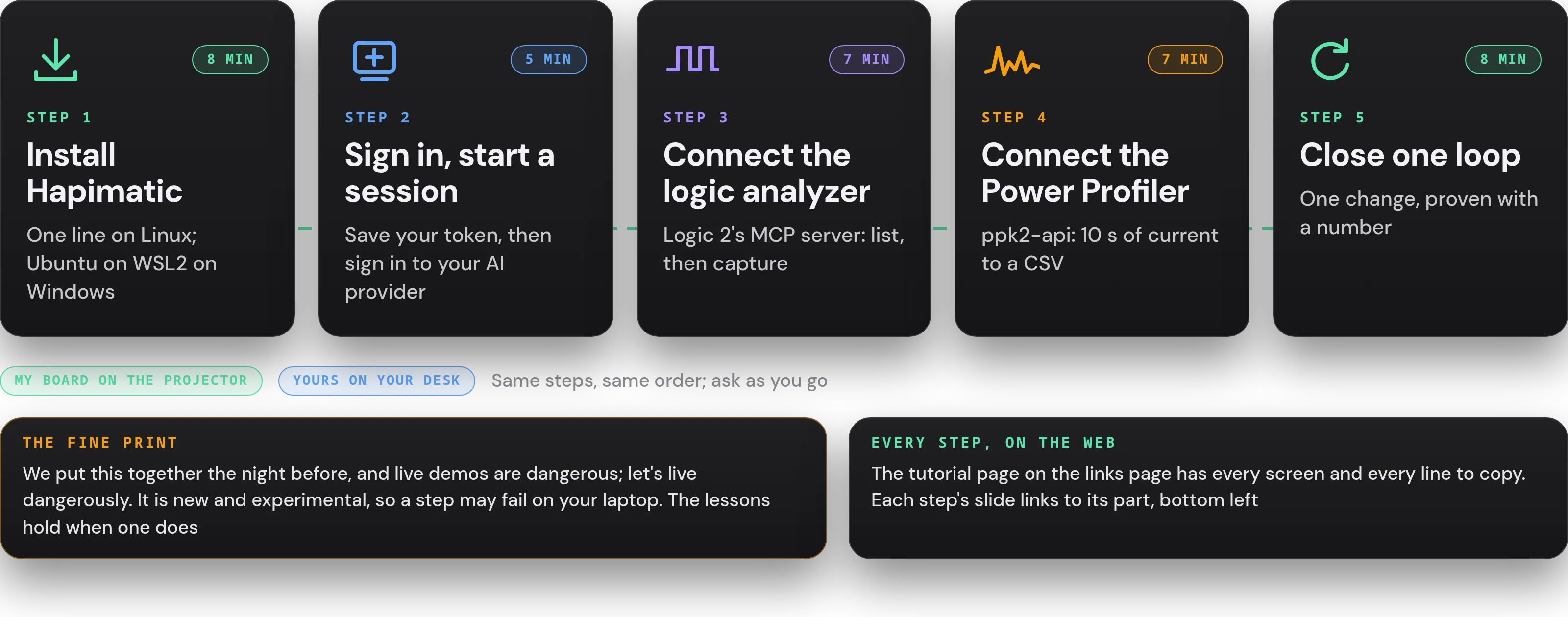
Five steps, 35 minutes: step 1 install Hapimatic, 8 min; step 2 sign in and start a session, 5 min; step 3 the Saleae under the agent, 7 min; step 4 the PPK2 under the agent, 7 min; step 5 close one loop, 8 min. My board on the projector, yours on your desk. The fine print: we put this together the night before, and live demos are dangerous, so let's live dangerously; it is new and experimental, a step may fail on your laptop, and the lessons hold when one does. Every step is also on the web: the tutorial page on the links page, and each step's slide links to its part at the bottom left
Step 1 of 5
Install Hapimatic
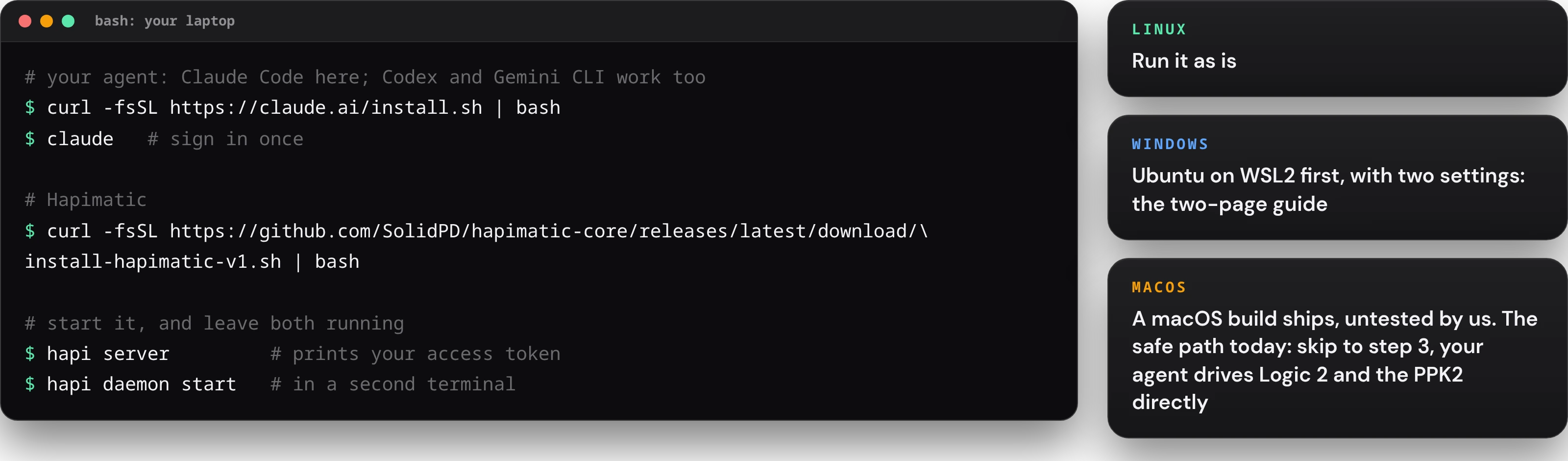
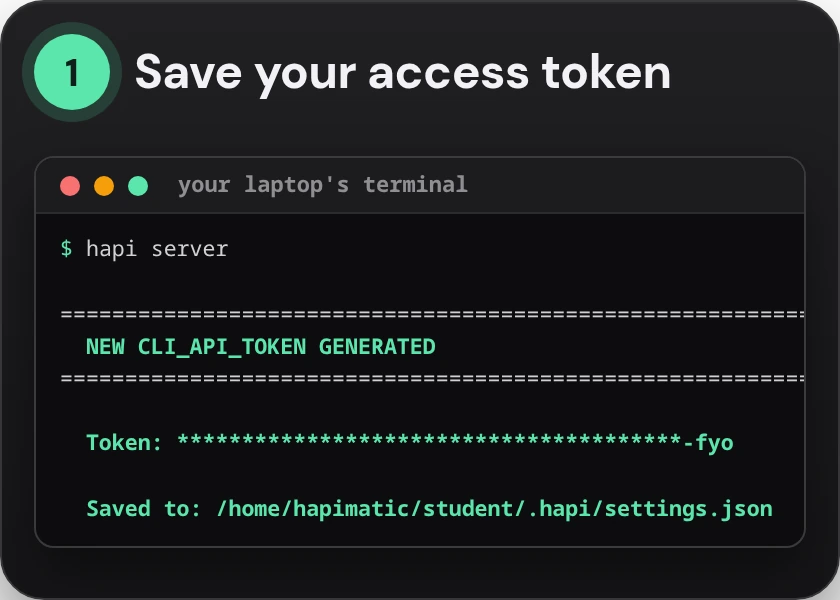
In a terminal on your laptop: install your agent with curl -fsSL https://claude.ai/install.sh | bash and run claude once to sign in (Codex and Gemini CLI work too); install Hapimatic with curl -fsSL https://github.com/SolidPD/hapimatic-core/releases/latest/download/install-hapimatic-v1.sh | bash; then hapi server, which prints your access token, and hapi daemon start in a second terminal. Linux: run it as is. Windows: Ubuntu on WSL2 first, with two settings, the two-page guide. macOS: a build ships, untested by us; the safe path today is to skip to step 3, where your agent drives Logic 2 and the PPK2 directly
Step 1 of 5
On Windows? Ubuntu on WSL2
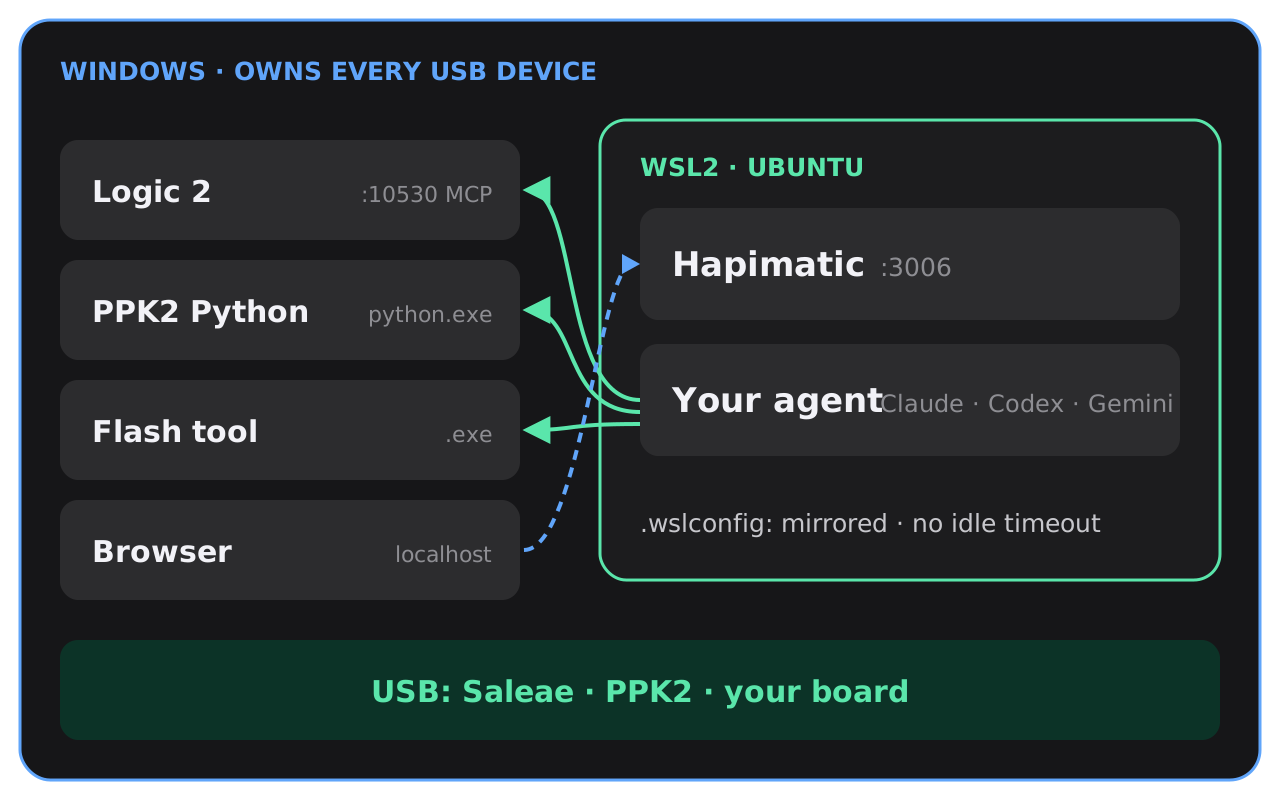
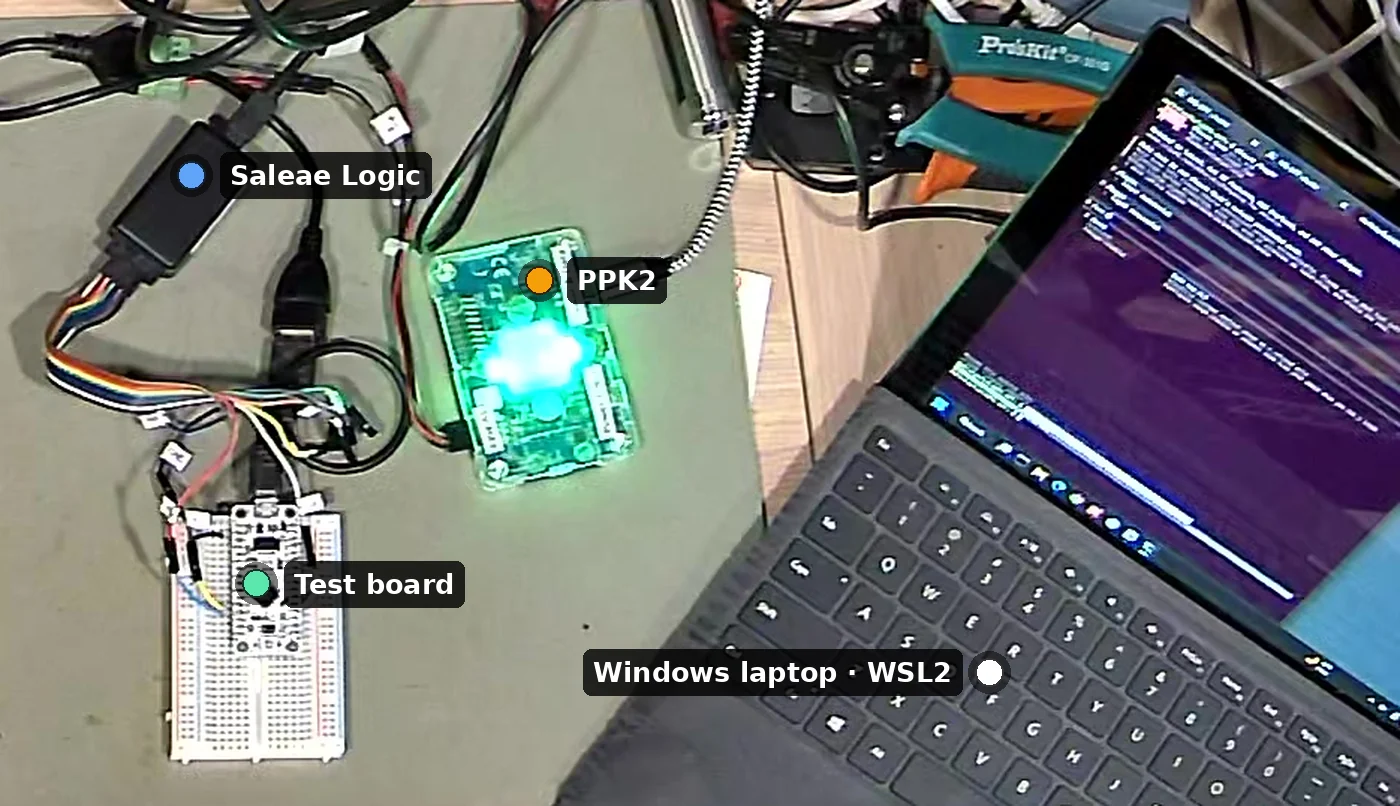
Windows owns every USB device and runs Logic 2 with its MCP server on port 10530, the PPK2's Python, the flash tool, and the browser; WSL2 Ubuntu runs Hapimatic on port 3006 and your agent, Claude Code, Codex, or Gemini CLI, which calls the Windows tools. .wslconfig: mirrored networking, no idle timeoutThe bench the guide was tested on: the Saleae Logic, the PPK2 lit green, the test board on a breadboard, and the Windows laptop running WSL2, each marked
Step 2 of 5
Sign in, and start a session
The first hapi server prints it once: save it. It also lives in ~/.hapi/settings.json, and this line prints it again
jq -r .cliApiToken ~/.hapi/settings.json
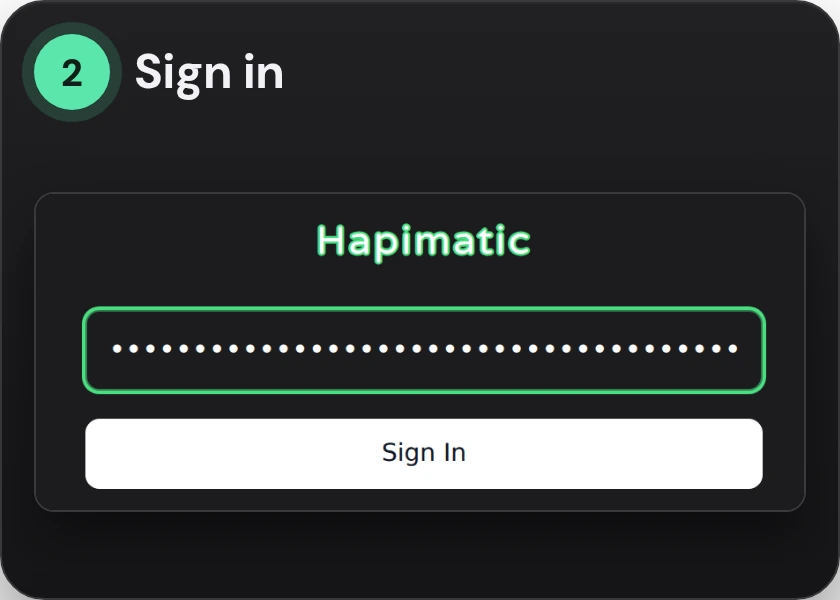
Open localhost:3006 in your browser, paste the token, and sign in
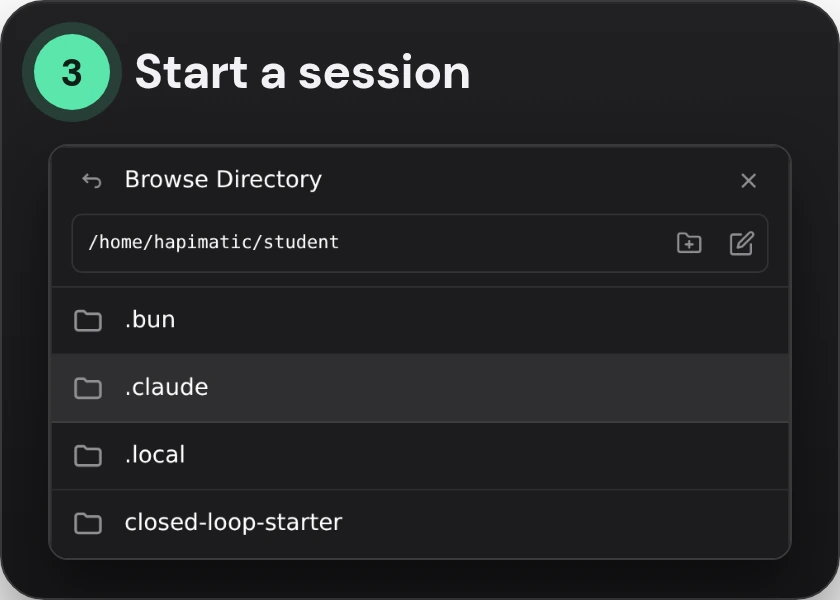
New Session, then Browse: pick your copy of the starter repo and Select. Create, with Claude Code as the CLI Harness
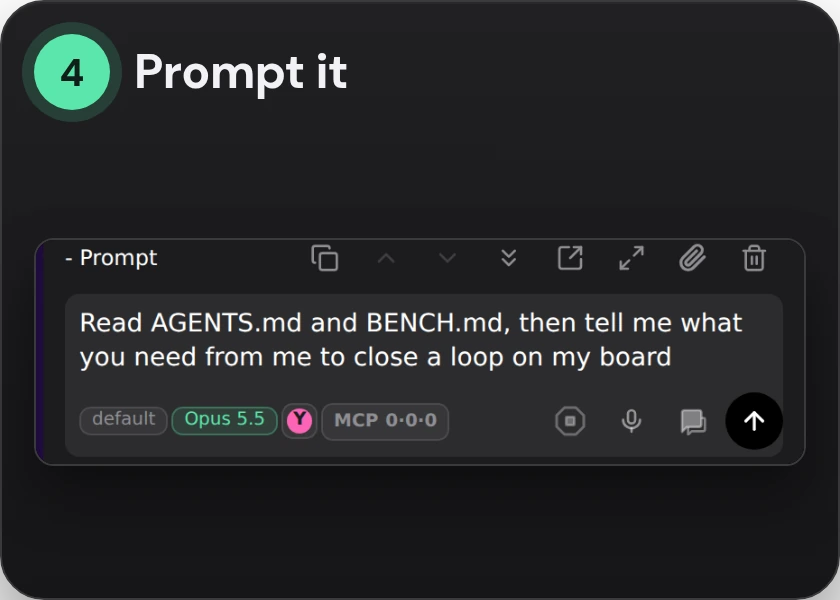
Send it, and read the answer: what it needs from you to close a loop
Read AGENTS.md and BENCH.md, then tell me what you need from me to close a loop on my board
Step 2 of 5
Sign in to your AI provider in Hapimatic
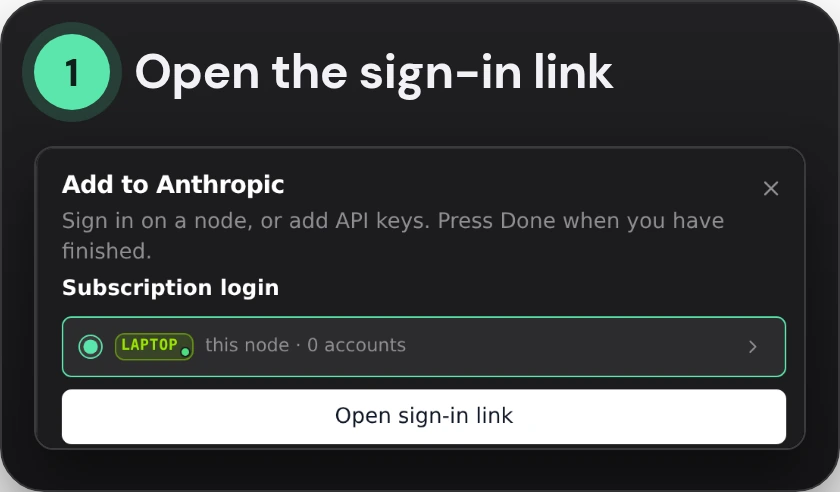
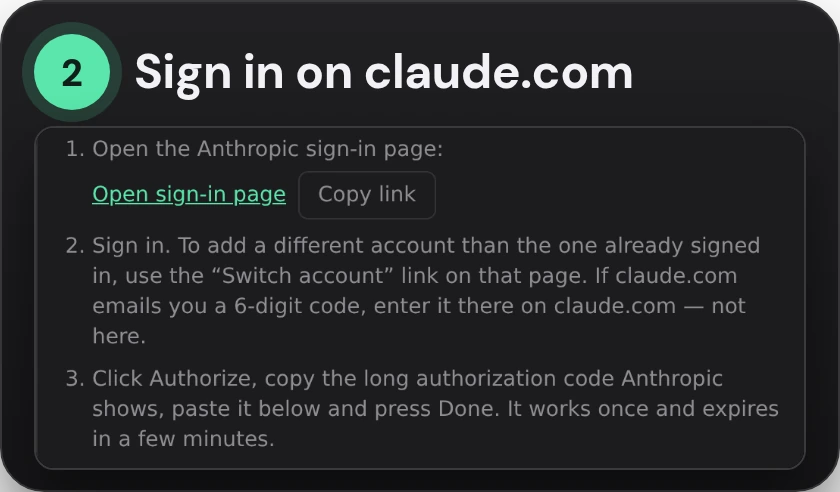
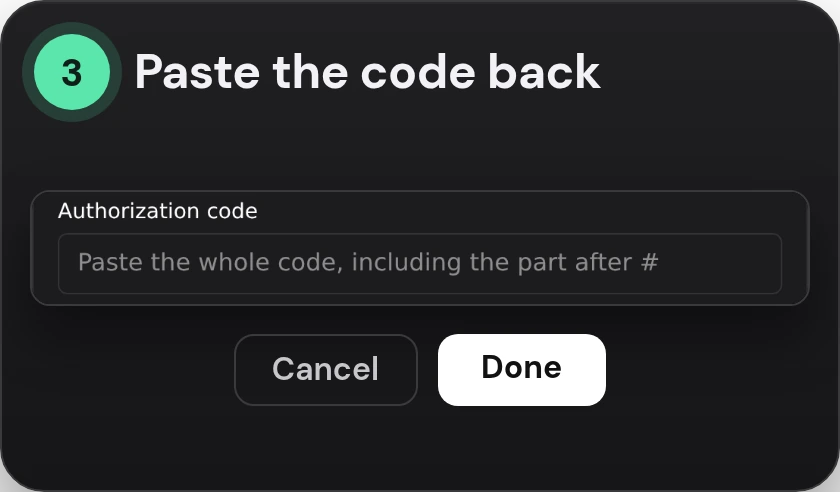
Settings › Provider Accounts › Anthropic › Add account, then Open sign-in linkOn claude.com: your email, then the 6-digit code it emails you, entered there. Then Authorize, and copy the long codeBack in Hapimatic: paste the whole code, including the part after #, and press Done. It works onceFive routes, ranked. 1 Claude Code: a Claude plan, the three steps above, or an Anthropic API key in the same box; tested most. 2 Codex: install it with OpenAI's installer before Hapimatic, the line below the routes; today, sign in with codex login in a terminal, because the in-app sign-in is being fixed. 3 An OpenRouter key: paste it in Provider API Keys, and it runs OpenCode on the model you choose; OpenCode's qualification is pending. 4 Gemini CLI: a Google AI Studio key, whose Flash models have a free tier; it passed the bench loop. 5 A local model: free and slow, experimental; alone it failed 0 of 8, and with a frontier model reviewing it passed 3 of 3
curl -fsSL https://chatgpt.com/codex/install.sh | sh
Codex: install it before Hapimatic, then codex login in a terminal
Install Codex with OpenAI's installer, before you install Hapimatic, so Hapimatic finds it; then check it
curl -fsSL https://chatgpt.com/codex/install.sh | sh
codex --version
If you use the systemd services, add this line under [Service] in both units (hapimatic-server.service and hapimatic-daemon.service), then reload and restart. If you run hapi server in a terminal, just restart it
In ChatGPT: Settings › Security › enable device code login. A school workspace needs its admin to allow it; if it won't, use an OpenAI API key
Today: sign in from your terminal and finish the ChatGPT sign-in it opens; Hapimatic reads that login. Signing in from Hapimatic's Settings › Provider Accounts › OpenAI is being fixed
codex login
The in-app Codex sign-in is being fixed, and a full Codex session has not been tested end to end on this path. Source: the students' before-class sheet (docs/talks/2026-10-28-penn-ese5180/students-before-class-v1.md, step 3, on ese5180-v4) and Lane E's report on #5871 (2026-10-27): OpenAI's installer before Hapimatic, device code login in ChatGPT's Security settings, the systemd PATH line; the in-app sign-in fix is PR #5882, not in this deploy
Step 3 of 5
Connect your agent to the logic analyzer
Logic 2: the Automation button at the bottom right, or Settings › Automation. MCP Server on: 127.0.0.1:10530. Screens: Saleae
Your session's Terminal tab: paste, press Enter, and stay there for the reply. Codex: the second line
claude mcp add --transport http -s user logic2 http://127.0.0.1:10530
codex mcp add --url http://127.0.0.1:10530 logic2
nRF7002 DK: channel 0 on P1.06 (LED1), its ground lead on GND. Another board: any pin your firmware toggles. Drawing: Nordic
Back on Chat, send it. It lists your Logic, captures, and says what channel 0 did
List my Saleae devices, then capture two seconds on channel 0 and tell me what you see
Step 4 of 5
Connect the Power Profiler
Windows: nRF Connect for Desktop first (the driver), then the first block in PowerShell; Ubuntu cannot see USB. Mac: the second block
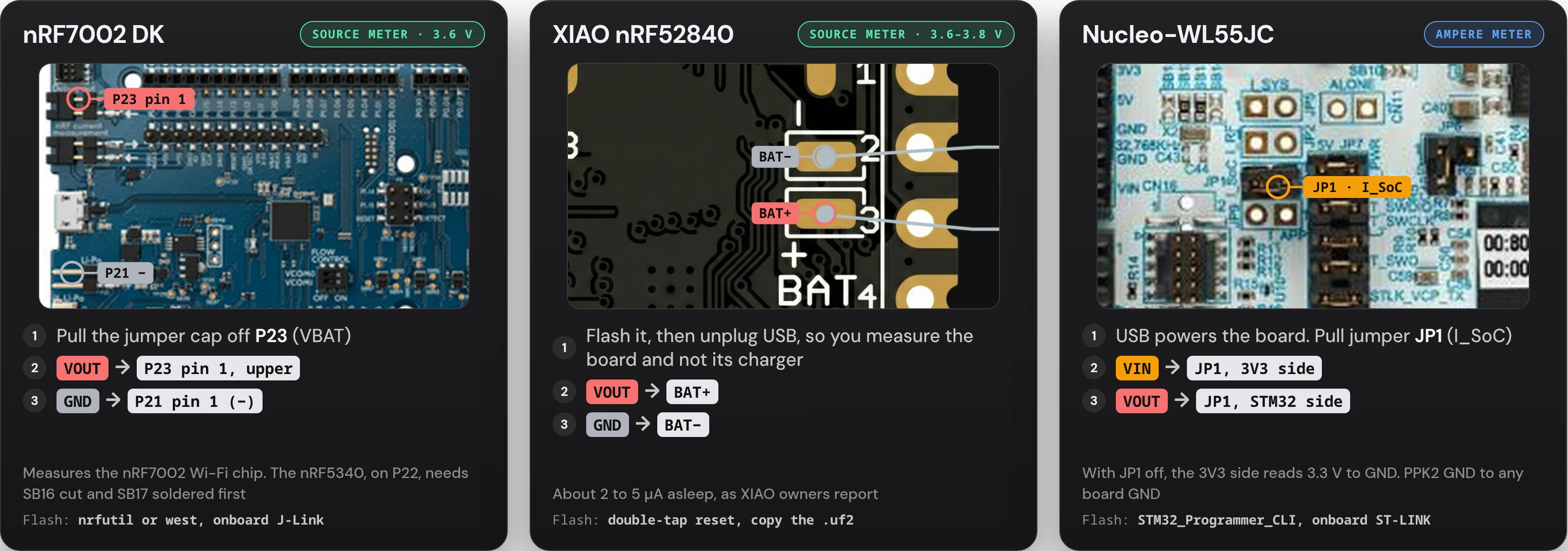
Before you clip onto the nRF7002 DK, read the pin-1 marker on the silkscreen: the lower P23 pin is the DK's own VBAT supply. VOUT goes on P23 pin 1, GND on P21 pin 1 (−), and powering the board needs a teammate's yes
Step 5 of 5
Five steps, and a repo to start from
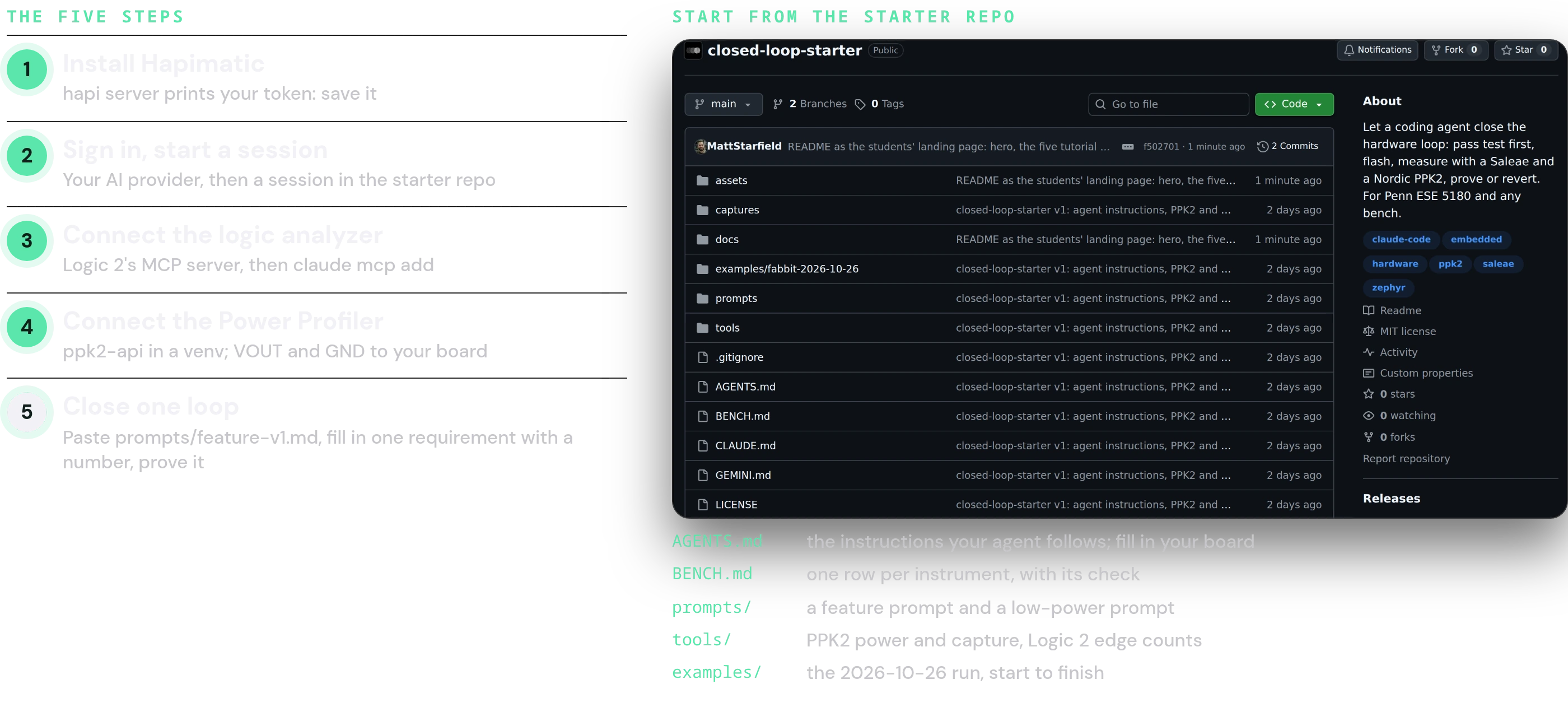
The five steps: 1 install Hapimatic, and save the token hapi server prints; 2 sign in to your AI provider, then start a session in the starter repo; 3 connect the logic analyzer, Logic 2's MCP server then claude mcp add; 4 connect the Power Profiler, ppk2-api in a venv, VOUT and GND to your board; 5 close one loop, paste prompts/feature-v1.md, fill in one requirement with a number, and prove it. Beside them, the starter repository on GitHub, closed-loop-starter, and what is in it: AGENTS.md, the instructions your agent follows; BENCH.md, one row per instrument; prompts/, a feature prompt and a low-power prompt; tools/, PPK2 power and capture and Logic 2 edge counts; examples/, the 2026-10-26 rungithub.com/SolidPD/closed-loop-starter
The tutorial
Your loop, from install to commit
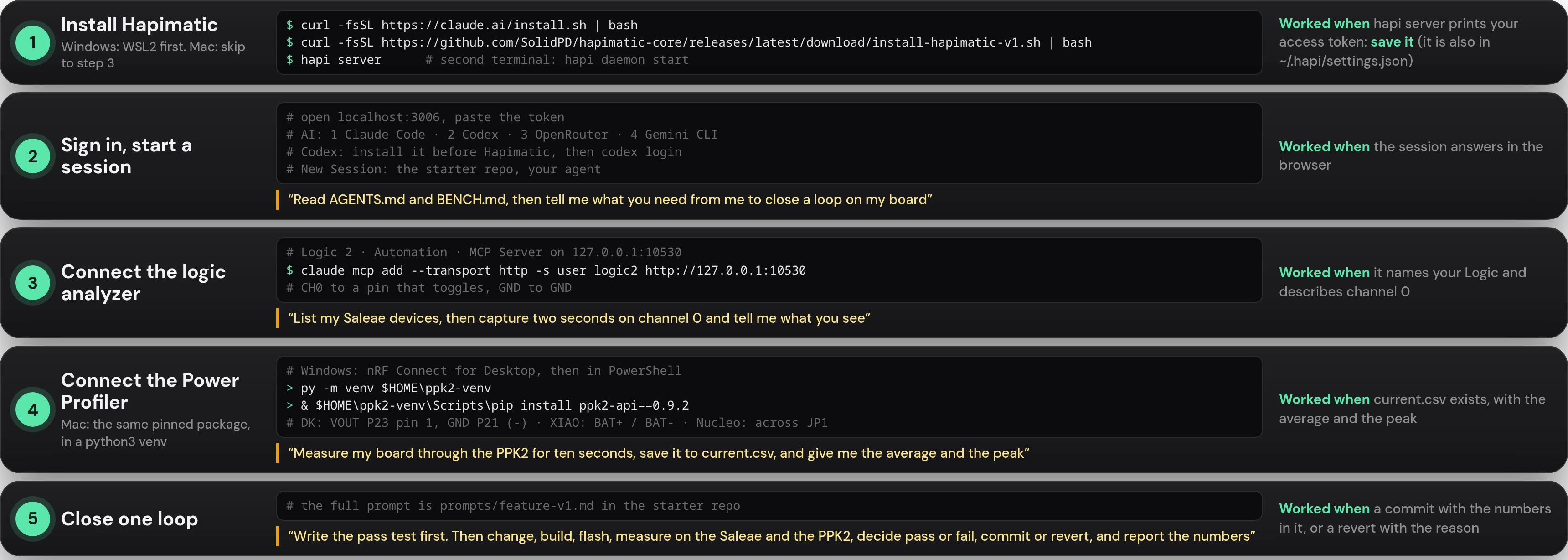
The whole loop on one sheet, five rows. 1 Install Hapimatic (Windows: WSL2 first; Mac: skip to step 3): curl -fsSL https://claude.ai/install.sh | bash; curl -fsSL https://github.com/SolidPD/hapimatic-core/releases/latest/download/install-hapimatic-v1.sh | bash; hapi server, and hapi daemon start in a second terminal; it worked when hapi server prints your access token, which you save; it is also in ~/.hapi/settings.json. 2 Sign in and start a session: open localhost:3006 and paste the token; AI in this order: Claude Code, Codex, OpenRouter, Gemini CLI; Codex is installed before Hapimatic, then codex login; New Session in the starter repo; ask: Read AGENTS.md and BENCH.md, then tell me what you need from me to close a loop on my board; it worked when the session answers. 3 Connect the logic analyzer: Logic 2's Automation, MCP Server on 127.0.0.1:10530; claude mcp add --transport http -s user logic2 http://127.0.0.1:10530; CH0 to a pin that toggles, GND to GND; ask: List my Saleae devices, then capture two seconds on channel 0 and tell me what you see; it worked when it names your Logic and describes channel 0. 4 Connect the Power Profiler: on Windows nRF Connect for Desktop, then in PowerShell py -m venv $HOME\ppk2-venv and & $HOME\ppk2-venv\Scripts\pip install ppk2-api==0.9.2; on a Mac the same pinned package in a python3 venv; DK: VOUT to P23 pin 1, GND to P21 minus; XIAO: BAT+ and BAT-; Nucleo: across JP1; ask: Measure my board through the PPK2 for ten seconds, save it to current.csv, and give me the average and the peak; it worked when current.csv exists with the average and the peak. 5 Close one loop: the full prompt is prompts/feature-v1.md in the starter repo; Write the pass test first, then change, build, flash, measure on the Saleae and the PPK2, decide pass or fail, commit or revert, and report the numbers; it worked when there is a commit with the numbers in it, or a revert with the reasonBack to the links